Sunday, 23 September 2012

Editing photograph metadata

A much neglected task for any photographer is labelling one's photographs. In the old days one could write on the back of a print, but as I always preferred slide film this wasn't an option. So I created a database in which I stored a simple title and description of each slide. However, as it would often take me many months to finish a film it was sometimes unclear when and where any particular picture was taken. So I've finished up with too many slides labelled "somewhere in France".

In this age of electronic photography everything should be so much easier. There are standardised ways of storing information about the image in the image file itself. This so-called metadata is then permanently attached to the photograph. It doesn't fade or get lost when a database crashes. What's more, online services such as Flickr can use this metadata to label photographs when you upload them, saving you the trouble of writing it all again. And with photos being loaded into a computer within hours of taking them there's no excuse for forgetting any details.

On my Windows XP computer I have an easy to use metadata editing program called Microsoft Pro Photo Tools. Surprisingly Microsoft seem to have discontinued it, as there is no Windows 7 version.

The screenshot shows the key features. I load a group of images, typically one day's photos, whose thumbnails are displayed in the lower half of the GUI. After selecting one or more of the images I type metadata into the boxes in the upper half. Switching to the "map browse" tab I can drag and drop images to a map to set their location data. This really is a simple to use program that should have been more heavily promoted.

Since choosing Linux as the operating system for my main computer I've been looking for a suitable photo metadata editing program. None that I've tried has the required features. For example, some only allow you to label one picture at a time and others have a very cluttered interface that has too much technical detail. So I've decided to write my own.

As you can see, I've borrowed some of the look and feel from Photo Tools. I'm writing the software in Python, as that's what I know, and I'm using PyQt to create the GUI. Python has a very good library to read and write metadata called pyexiv2. My program is still at a very early stage of development but I'm very pleased with how it's coming along. I've even managed to load Google maps into the GUI.

My only difficulty has been in getting my head round the multiplicity of metadata standards - EXIF, IPTC and XMP. Some data, such as title or copyright info, can be stored in all three. I've decided to try and make my program follow Postel's law so it will read data from any standard and write to all three. This should maximise its compatibility with other programs.

Needless to say, when it becomes usable I'll be making it available as open source. Watch this space.

Edit 2012/09/26: early version is now available from github: http://github.com/jim-easterbrook/Photini

Friday, 8 April 2011

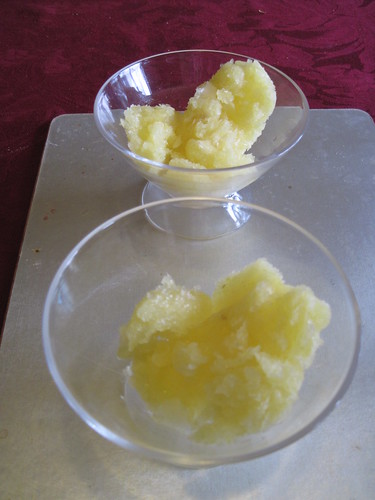
Lemon sorbet

Some time ago a friend quoted the old saying about when life gives you lemons, make lemonade. I replied that I make sorbet. She said that wouldn't do for her as she's allergic to eggs. I mentioned that I don't use egg in my sorbet and she asked for the recipe. Having typed it up I thought I might as well reproduce it here.

Citrus sorbet (eggless)


Lemon sorbet.

Ingredients

3 or 4 lemons or limes, preferably unwaxed
granulated sugar
water

This recipe is based on the one in Larousse Gastronomique, but adjusted as a result of much experimentation. The secret of making a sorbet without using egg whites is to add enough sugar to lower the freezing point significantly. Larousse specifies a target density of 1.1697 (spurious precision there) but uses such a large quantity of water that a lot of sugar has to be added later on.

1/ Weigh the fruit, in grammes.

2/ Make a syrup.
For every 100g of fruit, use 30g of sugar and 20ml of water. Put sugar and water in a small pan and bring to the boil, stirring continuously. The sugar probably won't dissolve until it's nearly boiling. Boil gently to make a clear syrup. Stand the pan in a bowl of cold water to cool.

3/ Finely grate the zest then squeeze the juice from the fruit. You should have about 40ml of juice for every 100g of fruit. If you've got a very different amount it might be worth making more or less syrup.

4/ Mix the zest, juice and cooled syrup.

[Dons white coat] Now, here comes the science bit.

5/ Weigh an empty measuring jug. Pour the mixture into the jug and weigh again. Divide the difference in weight by the volume of mixture to get its density. This should be in the region of 1.17, a bit over is better than a bit under. If the density is too high, stir in a little water and measure again. If it's too low, stir in a little sugar and measure again. You can guess how much sugar or water to add - 10ml of water adds 10ml to the volume and 10g to the weight, 10g of sugar adds 10g to the weight and very little to the volume.

6/ Pour the mixture into a suitable container and place in the deep freeze. Stir it every half hour or so, particularly as it begins to get slushy. You could fold in some beaten egg white at this point, but you don't need to.

7/ Remove from the freezer half an hour or so before serving.

8/ Serve as it is, or with a sprig of mint and a dash of vodka poured over it to make a 'colonel'.

Tuesday, 12 May 2009

plustek OpticFilm 7300 film scanner

Slide_0038

I'm not an avid photographer, but have still managed to accumulate over 2800 35mm slides before I bought my first digital camera in September 2003. These have been sitting in a couple of shoe boxes, slowly decaying, for up to 30 years. A few weeks ago I decided to bite the bullet and transfer them to modern, indestructible, digital form.

A bit of web searching suggested there are three classes of film scanners on the market: cheap & nasty, twice the price but OK, and 30 times the price & out of my league. I soon decided against the cheap & nasty category. If I'm going to spend many hours scanning all my slides, I'd rather not have to do it twice.

The mid range in scanners appears to be dominated by plustek's OpticFilm series. After comparing the different models, I chose the OpticFilm 7300 model as it has slightly better dynamic range and is faster than the base models, and I feel I can do without the infra red dust detection of the more expensive models.

Since buying the scanner I've scanned just over 500 of my slides, starting with the very first picture I took with my Zenith E - a big, clunky, Russian made SLR I bought in 1978. I'd previously catalogued all my slides, giving each one a 4 digit number, so scanning them in order seems the most sensible way to proceed. The picture above is slide 0038, taken in my parents' garden in 1978.

Now would seem to be a good time to record some of my experiences with the slide scanner. Overall I'm quite impressed, but there are a few significant annoyances that do impede the process of scanning.

Mechanically the unit is pleasingly solid, and the slide holder grips the slides firmly while being easy to load and unload. However, when sliding the holder into the scanner it is quite difficult to stop in the right place. There are dents in the side of the holder that engage with something spring loaded inside the scanner, but the action is not nearly positive enough. Quite often the prescan shows the slide to be incorrectly positioned and a nudge is needed, followed by a repeat prescan.

Slide_0467

After the prescan, the edge of the image area has to be set. The SilverFast SEplus software supplied with the scanner has an automatic function to do this, but it quite often fails, particularly with under exposed slides or if the image contains strong straight lines near the edge. I do realise that finding the ragged edges of a scanned slide is a non-trivial image processing problem, especially as the prescan image is quite noisy, but I'm surprised at how often it fails. Even when it succeeds, it consistently treats the top and bottom edges of a slide differently, as in the example above.

What really annoys me though is that the software darkens the area outside the image frame, thus hiding any picture area that's missing. This makes manual adjustment a two stage process - drag and drop the boundary line beyond the slide edge (to undarken the image) then drag and drop it to the actual edge. I think the software should lighten the area outside the boundary to make any missed image more visible, not darken it to make it less visible. It's a diagnostic tool, not a slide show application.

After setting the image area, there are numerous controls to adjust the scan brightness, contrast, gamma, colour balance and so on. These are much more powerful than I need, but may be useful if I rescan a chosen few slides that merit extra care. These slides would probably also get the noise-reducing, time-consuming, multi-scan treatment as well. For now, I just use the auto-adjust function, occasionally choosing a different "image type" such as "evening" if it gives a better looking result.

One curiosity about the software is the choice of positive, negative, or Kodachrome film types. All the slides I've scanned so far have been Kodachrome or Ektachrome, and the Kodachrome setting has given a better colour balance than the positive setting. I haven't attempted to scan any negatives.

Having already catalogued my slides in a database application, I decided to reuse this data to label the slides. After some hours experimenting with different Python libraries to process EXIF and IPTC data I finished up with a script that seems to do the job. If you follow the link to flickr from one of the above pictures you'll see the description and tags that were automatically extracted by flickr from the image's EXIF and IPTC data.